Key takeaways
- Demonstrate one task using the current real interface.
- Show prerequisites and preserve the difference between drafts and final actions.
- Optimize the crop for readability without hiding essential context.
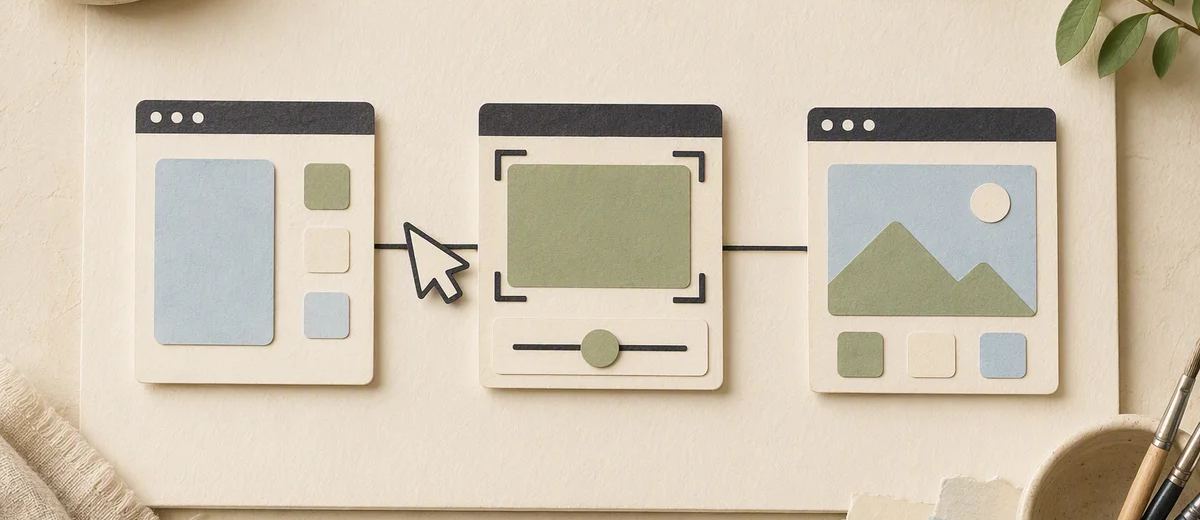
A SaaS screen demo becomes a useful creator-style video when it explains one real task in language a prospective user can follow. Record the current product performing that task, show the necessary starting conditions, and connect the result to a clear next step. A presenter can introduce the problem, but the interface should carry the evidence.
Avoid turning the demo into a tour of every menu. A viewer usually needs to understand whether the product can help with a particular job and what using it involves. A focused workflow is easier to verify, explain, and maintain than a fast montage of unrelated features.
Pick a task with a visible result
Choose a task that begins with a recognizable input and ends with an observable state. For example, creating a draft from approved material, organizing a project, or exporting a completed item. Define the result precisely enough that a reviewer can confirm it happened.
State the prerequisites. The task may require a paid plan, a connected account, uploaded material, permissions, or previous setup. Decide which conditions need to be visible in the video and which can be explained clearly alongside it.
Do not choose a task only because it looks impressive in an internal demo account. Use a workflow that reflects what the intended user can access. If a feature is in a limited test or unavailable to some accounts, make that boundary clear.
Your SaaS social media strategy can help connect the task to a broader educational plan. This video should handle the screen-level explanation of one job, not repeat the entire positioning story.
Prepare a demonstration account deliberately
Use an account and data you are authorized to show. Remove private customer information, internal notes, credentials, and unrelated notifications. Do not rely on a later blur pass as the only protection against accidental disclosure.
Create realistic but clearly illustrative sample data when needed. The data should make the workflow understandable without pretending to be a real customer's performance. Avoid fabricated analytics that imply business results the product has not produced.
Check the product version, plan, and permissions before recording. A screen captured from an administrator account may expose controls ordinary users will not see. Keep that difference out of a general user demo unless it is explicitly the subject.
Store the account setup notes with the recording. Another editor should be able to reproduce the task without guessing which hidden preparation made the workflow appear smooth.
Record the real interface and preserve cause and effect
Capture the actual product rather than a generated imitation. Invented controls, confirmation messages, and output states can create false expectations. Even a polished mockup should be identified as a concept if it does not represent available behavior.
Show the action that causes the result. If the video jumps from an empty screen to a finished output, explain what happened between them. Time compression is acceptable when it remains understandable and does not imply an unsupported speed claim.
Keep pointer movement deliberate and avoid unnecessary menu exploration. A prepared route helps the viewer follow the task, but it should not conceal required steps. Record extra time around actions so the editor can adjust pacing without cutting away essential context.
The FTC's endorsement guidance is relevant to the overall product claim. A screen sequence can imply capabilities or ease that the spoken narration never explicitly promises.
An illustrative demo of a project-note workflow
Imagine a software company showing how to turn a meeting note into a task list. This is a hypothetical example, not a claim about Caroush or another specific product. The approved workflow requires a saved note and permission to create tasks in a project.
The video briefly identifies the starting note, shows the actual action used to create tasks, and opens the resulting list. It explains which details need review before assignment. If the system drafts rather than automatically finalizes tasks, the narration preserves that distinction.
The demo does not fabricate a perfect result by editing out required review while claiming the process is entirely automatic. It can shorten repetitive waiting, but it should make the nature of the output and the user's remaining responsibility clear.
The closing points to the relevant product information or trial route. It does not suggest that every viewer will have the demonstrated feature unless the current offer supports that claim.
Make the screen readable in the final crop
A full desktop recording often becomes too small on a phone. Focus the crop on the relevant area while preserving enough context to understand where the action occurs. Consider separate wide and vertical versions rather than shrinking everything into one layout.
Use restrained callouts to identify a control or result. Do not cover the evidence with captions or a presenter window. If a term is unfamiliar, explain it once in plain language rather than adding several competing labels.
W3C's media accessibility guidance is useful when deciding how narration, captions, and descriptions convey screen information. A spoken “click here” is less helpful than naming the actual control and its purpose.
Use carousel design principles for hierarchy and contrast in companion assets, while allowing enough time for reading in the video itself. Motion adds a pacing constraint that a static slide does not have.
Give the presenter a limited, honest role
A real presenter can introduce the user problem and explain the task. A synthetic presenter can narrate verified facts, but should not invent personal success stories or claim to be a customer. Keep the product recording central.
Use the presenter where they add context, then move to the screen when the action matters. A persistent talking head can consume the space needed to make the interface readable, especially in vertical formats.
Check terminology between the script and product. A renamed control or slightly different label can make the instruction difficult to follow. Maintain a small glossary of approved feature names and update it with product changes.
Draft surrounding post copy with the caption generator, then check that it describes the demonstrated workflow rather than an imagined broader capability. The caption and video should make the same promise.
Plan for product changes and corrections
Record the product version, recording date, plan assumptions, sample-data source, and approved destination. Identify which interface changes would make the video confusing or inaccurate. A stable concept can outlive a screen layout, but the instructions may still need revision.
Keep the clean recording, narration, captions, and callouts in separate layers. This makes a label correction or new crop easier without rebuilding the entire asset. Preserve the source sequence so reviewers can confirm what was actually recorded.
Caroush's tools directory can support companion content and publishing preparation. The screen demo itself should remain a faithful explanation of the product being shown, with no assumed analytics, approval, or automation features beyond what was verified.
Before release, ask someone unfamiliar with the interface to explain the starting requirement, main action, and result. If they cannot, revise the sequence before adding more promotional language. A useful demo reduces uncertainty by showing exactly what the user will do.
When reviewing a vertical crop, check whether the user can still identify the starting location inside the product. A close-up may make a button readable while removing the navigation context needed to find it. Add a brief wider view or a plain-language orientation cue before the close-up. This helps the demonstration remain actionable rather than becoming a visually clear but disconnected sequence of clicks.
Sources
Frequently asked questions
Can I use generated screens for a SaaS demo?
Use real recordings for available product behavior. Generated or designed screens can communicate a concept only when clearly framed as such, not as evidence of a current feature.
Should I record with an admin account?
Only if the video is for that role. Otherwise use permissions that match the intended user so the demo does not show inaccessible controls or hidden setup advantages.
How much waiting can I remove?
You can shorten uninformative waiting, but preserve an honest impression of the process. Do not turn an edited sequence into an unsupported instant-completion claim.
How do I keep demos current?
Track the product version, plan assumptions, controls shown, and source files. Review videos when those dependencies change and keep text, audio, and recording layers editable.
About Garry
Gaurav Sapkota builds Caroush, a workspace for creating, scheduling, and publishing social content.