
Key takeaways
- Start with one reader, one problem, and one useful outcome—not a stack of disconnected tips.
- Use seven slides as a planning framework, not a platform requirement: hook, context, three steps, recap, and next action.
- Write and review the copy before designing. Check the finished carousel on a phone before you publish.
- Adapt your assets and caption to each social platform instead of assuming every format works everywhere.
An Instagram carousel is a single post containing multiple images or videos that people can swipe through. To create a useful one, choose a focused idea, divide it into a logical sequence, design the slides as a set, and review the order before posting. You do not need to fill every available slide slot.
This guide uses a seven-slide framework to make that process repeatable. Seven is an editorial choice, not an Instagram requirement or a promise of better reach. Use fewer slides when the idea is simple and more only when each extra slide earns its place.
1. Choose one reader and one outcome
Before opening a design tool, complete this sentence: “After reading this carousel, [a specific reader] will be able to [do one useful thing].” If your answer needs several unrelated verbs, narrow the topic. A focused promise makes it easier to decide what belongs on a slide and what should become a separate post.
For example, “social media tips” is broad. “Help a solo business owner plan three posts from one customer question” gives the reader a specific result. That is the example we will develop below. It is a sample workflow, not a claim about customer results.
- Reader: a small business owner handling their own social content.
- Problem: they have useful customer knowledge but struggle to turn it into posts.
- Outcome: a short plan for three posts built around one real question.
2. Outline the carousel before writing every word
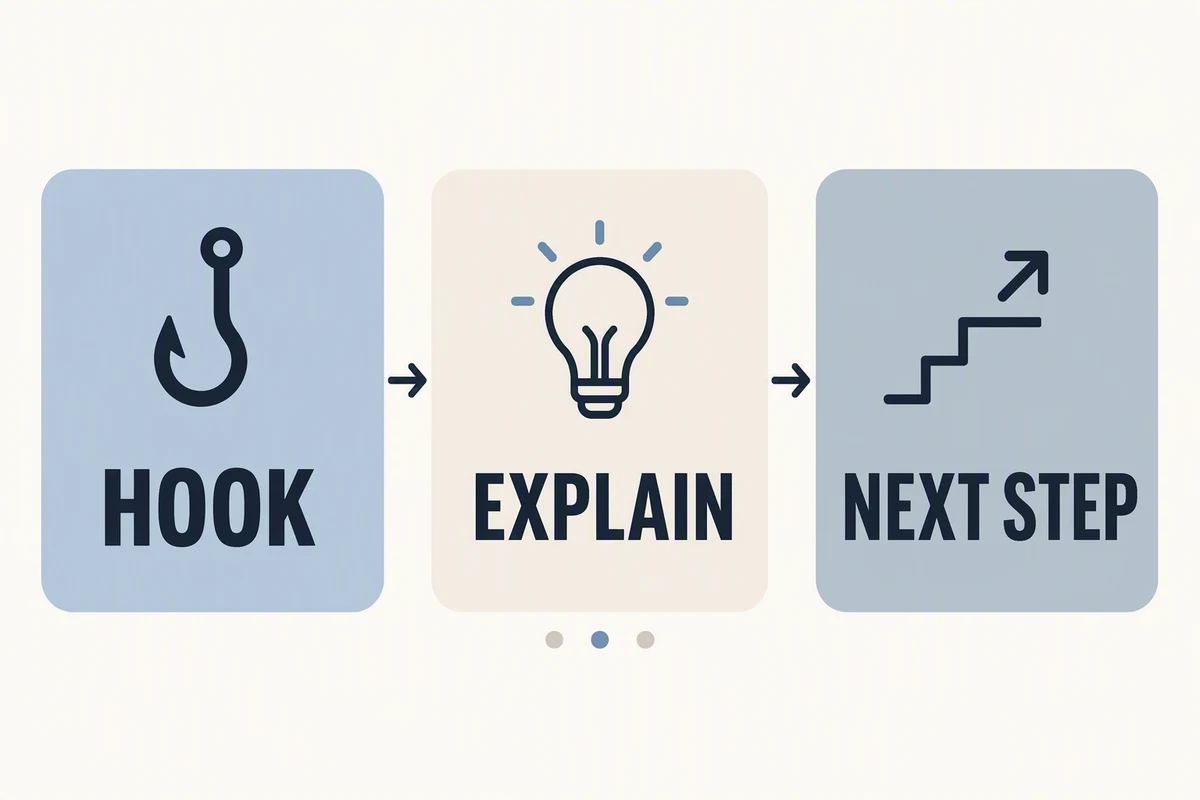
Give each slide a job. This prevents the common pattern of a strong cover followed by several slides that repeat the same point. A seven-slide outline can move from a clear promise to context, three actions, a recap, and one next step.
Slide 1: Make a specific promise
Example headline: “One customer question. Three useful posts.” A supporting line can clarify the audience: “A simple content plan for busy business owners.” Tell people what they will learn without promising guaranteed growth or using a claim the rest of the post cannot support.
Slide 2: Explain the problem
Example: “Your customers already give you content ideas. The hard part is turning one question into a sequence.” This creates context without spending a whole slide on an introduction to your brand.
Slide 3: Choose a real question
Example: “Pick a question you answered this week.” A bakery might start with “How should I store this bread?” Use an anonymized example or get permission before sharing a customer’s message. Do not invent a customer quote to make the post look more credible.
Slide 4: Create three distinct angles
Example: “Answer it. Show it. Explain a mistake.” For the bakery, that could mean a short storage guide, a demonstration of wrapping a loaf, and a post explaining a common storage mistake. The posts share a topic but each adds something useful.
Slide 5: Match each angle to a format
Example: “Use a carousel for the steps, a short video for the demonstration, and a single image for the reminder.” Choose formats you can produce well with the time and assets you have. There is no need to turn every idea into every format.
Slide 6: Give readers a recap they can use
Example: “Your mini plan: one question, three angles, three formats.” A short checklist is easier to revisit than a second explanation of the whole process. Make this slide useful on its own without making it so dense that the text becomes tiny.
Slide 7: Offer one next action
Example: “Choose one customer question and write your three angles.” You can also invite readers to save the checklist or explore a relevant resource. Pick the action that follows naturally from the lesson instead of asking for a follow, comment, share, signup, and purchase at once.
3. Write slide copy that is easy to scan
Draft the copy in plain text first. Use a clear headline, then only the explanation required to understand it. Read the headlines in order without their supporting paragraphs. They should tell a coherent story on their own.
There is no universal word count that makes a slide successful. A short headline and one or two brief sentences are a useful starting point. If a slide needs small type to fit, simplify the wording, split the idea, or move a supporting detail into the caption.
- Replace vague advice such as “be consistent” with an action the reader can take.
- Use the same term for the same thing throughout the carousel.
- Check names, product claims, examples, and any numbers before designing.
- Remove repeated setup sentences so later slides can get straight to the point.
4. Design the slides as one readable set
Choose a consistent canvas, a simple type hierarchy, generous margins, and enough contrast between text and its background. Your reader should not have to relearn the layout on every swipe. A restrained design can still vary the composition to distinguish an example, a checklist, or a final action.
Test the smallest text on a phone, not only on a large monitor. Keep important words away from edges and check how the cover looks in Instagram’s current post and profile previews. Platform formats and cropping behavior can change, so confirm the current requirements in the publishing interface you use.
Use images that clarify the topic and that you have permission to use. An original screenshot, diagram, or simple text-led slide can be more useful than an unrelated stock photo. Add meaningful alternative text where the publishing workflow supports it, and do not rely on color alone to communicate a step or warning.
If you have designed one wide composition, the Caroush Instagram Carousel Splitter can help turn it into separate carousel images. A profile grid is a different layout: the Instagram Grid Maker divides an image for multiple profile posts rather than a single swipeable post. Choose the tool that matches the result you want.
5. Add a caption that supplies useful context
The caption should complement the slides, not simply repeat every word. Explain who the advice is for, add a qualification that did not fit on the slides, and include a relevant next step. If an example is hypothetical, say so. If you refer to research or a statistic, identify the original source and verify that it supports the claim.
A caption for our example could be: “If planning content feels like starting from zero, try one question your customers already ask. Write an answer, a demonstration, and a common mistake. This is a sample planning exercise—adapt it to the information your audience actually needs.”
Use the words your audience uses to describe the topic naturally in the headline and caption. Avoid keyword stuffing and long blocks of unrelated hashtags. Clear, useful content is the objective; no caption formula can guarantee distribution or search rankings.
6. Review the export and the publishing setup
Before posting, export the carousel and open the actual files. A design that looked correct in the editor can still have an incorrect crop, a missing font, or slides in the wrong order. Numbering exported files makes the final review easier.
- Read the slides in the intended order and confirm that every image is present.
- Check spelling, contrast, alignment, image quality, and the smallest text on a phone.
- Confirm the correct account, supported post type, caption, and any available accessibility settings.
- If scheduling, review the date and time zone and confirm that the account connection is active.
- After the post is sent, check the publishing result and the post itself before considering the job done.
Caroush brings carousel creation and social publishing into one workspace. You can explore the available tools and current plans to see what fits your workflow. The exact publishing options depend on the connected platform, account permissions, and supported post format; check the options shown for your account.
7. Use the result to improve the next carousel
Decide what the post is meant to help people do before judging it. For a practical guide, saves and useful questions may be more informative than likes alone. For a product explanation, relevant visits or inquiries may matter more. Use the metrics available in the platform’s own insights or your existing measurement setup.
Compare posts with similar goals and context. A single result does not prove that a headline, slide count, or posting time caused a change. Note what people found confusing, improve one part of your next carousel, and keep the useful ideas rather than copying a format blindly.
Your next step: draft the seven headlines
Choose one question from your audience and write only the seven headlines first. Check that each slide adds something, then fill in the minimum supporting copy. Once the sequence works, design it, review it on a phone, and publish when you are satisfied with the result.
Frequently asked questions
How many slides should an Instagram carousel have?
Use the number needed to deliver the idea clearly within Instagram’s current limits. Seven slides are a useful planning framework for this guide, not a requirement or a guarantee of better performance. Check the current limit in the publishing interface you use.
Can I create a carousel without professional design skills?
Yes. Start with a consistent layout, readable type, strong contrast, and one idea per slide. Writing a clear sequence and reviewing it on a phone are more important than adding decorative effects.
What is the difference between a carousel and an Instagram grid?
A carousel groups multiple slides inside one swipeable post. A profile grid layout uses multiple separate posts that line up on your profile. Their ordering, cropping, and publishing workflows are different.
Can I schedule an Instagram carousel with Caroush?
Caroush includes social scheduling, but available post types depend on the connected Instagram account, permissions, and supported media. Check the format options and account connection in your workspace before scheduling.
About Garry
Gaurav Sapkota builds Caroush, a workspace for creating, scheduling, and publishing social content.